Available in the Apple App Store
https://apps.apple.com/us/app/advanced-state-machine-editor/id6774139172
Design, simulate, and generate code from state machines — all on your Mac.
What is it
A macOS application for defining, visualising, simulating, and generating source code from finite state machines.
You describe your machine’s states and transitions — either visually on a canvas or through structured tables. You simulate it interactively to verify the behaviour. Then you generate thread-safe, production-ready source code in 10 languages.
The app runs entirely on your machine. No cloud, no accounts, no telemetry. Your state machine data never leaves your computer.
What you can do with it
Build your machine visually
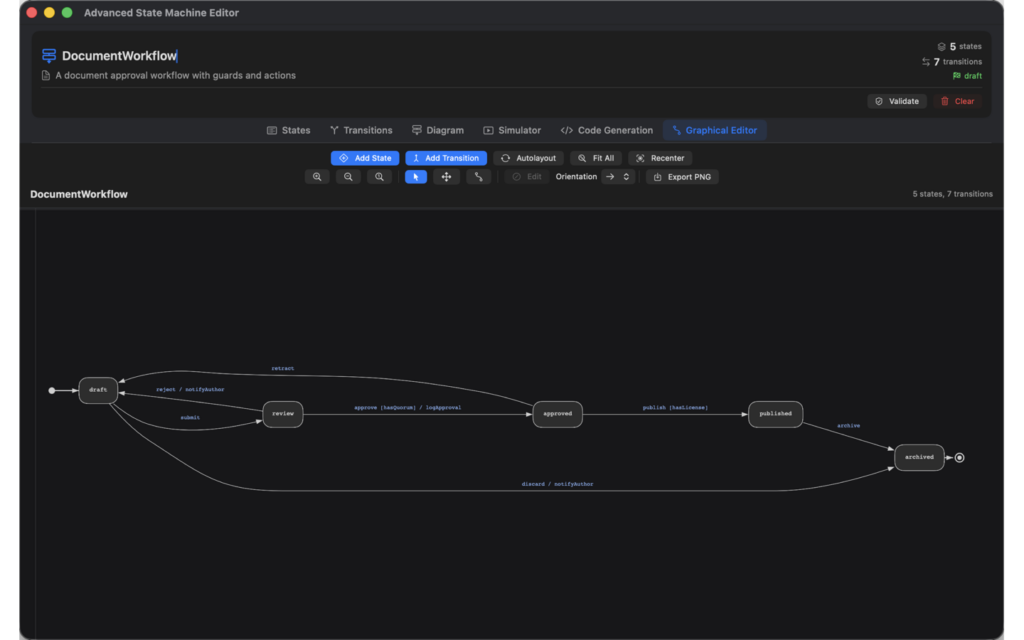
The Graphical Editor tab gives you a drag-and-drop canvas. Add states as boxes (or circles). Connect them with transitions. Drag states to reposition them — connected arrows follow automatically. Drag arrow endpoints to change connection points without altering the logical relationship. Drag label text to clean up overlapping lines.
Turn on Bezier mode to expose curve control handles on any transition. Drag the handles to reshape the line however you want.
Pan the canvas by dragging the background. Zoom with the scroll wheel, trackpad pinch, or toolbar buttons. Fit All zooms to show every node. Recenter moves back to centre.
If you prefer structured editing over the canvas, the States and Transitions tabs give you a table view. Edit names inline, toggle initial/final flags, assign per-state and per-transition colours, set optional guard conditions and entry/exit actions.
Or work in tables
-
- States tab: name, colour, initial/final flags, entry and exit actions, connection counts. Add or remove states from here.
-
- Transitions tab: source state, target state, event name, optional guard condition, optional action, colour.
Both views stay in sync — changes in one appear in the other immediately.
Validate as you go
Validation for common mistakes:
-
- Machine name is required
-
- At least one state must exist
-
- Exactly one initial state
-
- No duplicate state names
-
- No transitions referencing non-existent states
-
- No duplicate transitions (same from→to:event)
-
- Final states cannot have outgoing transitions
-
- A state cannot be both initial and final
Validation is instantaneous. Results are shown in the same view — green for valid, red with the specific error.
Simulate before you code
The Simulator tab creates a live instance of your state machine. It shows:
-
- The current state with entry/exit action labels
-
- Available event buttons — click one to fire a transition
-
- Guard-conditional transitions shown as separate buttons (
submitvssubmit [invalid])
- Guard-conditional transitions shown as separate buttons (
-
- A scrollable event history log (exportable as JSON)
-
- A read-only diagram below with the current state highlighted (gold border)
Pan, zoom, fit all, or centre on the active state. Change the layout orientation and the diagram re-layouts.
For hardware-in-the-loop testing, connect to a remote runtime server via TCP. Supported server languages: Go, Swift, Java, Objective-C. The connection uses a nonce-based challenge-response authentication with certificate tokens. Once connected, events are forwarded to the remote device and the state updates locally. Simulator’s State Machine dynamically centers on the Current State on the State Machine Diagram.
Generate code in 10 languages
When your machine behaves correctly, go to the Code Generation tab. Select a language and an action mode, then click Generate.
| Language | Thread safety | Files |
|---|---|---|
| Go | sync.Mutex |
.go |
| Rust | Arc<Mutex<>> type alias |
.rs |
| Swift | actor with private state |
.swift |
| C | Single-threaded | .h + .c |
| Java | synchronized methods |
.java |
| Python | threading.Lock |
.py |
| Kotlin | @Synchronized annotation |
.kt |
| C# | lock on readonly object |
.cs |
| C++ | std::mutex + std::lock_guard |
.h + .cpp |
| Objective-C | @synchronized(self) |
.h + .m |
Three output modes:
-
- Stubs: generates TODO function stubs for guards, actions, entry/exit code — you fill in the logic
-
- Invoke: calls guard/action functions directly — you provide the implementations
-
- Extern: declares extern functions — useful for C, C++, and Objective-C linkage
Every generated file includes a DO NOT EDIT header marking the generated framework code, followed by a BEGIN USER MODIFIABLE SECTION boundary before the guard/action stubs. Each stub carries a // TODO comment.
Bundled driver examples for all 10 languages (File → Open Driver Examples…) show a working TrafficLight machine from initialisation through all state transitions.
Render and export diagrams
The Diagram tab renders an SVG of your machine automatically using Graphviz. Choose the layout direction (Left→Right, Top→Bottom, Right→Left, Bottom→Top). Toggle the raw DOT source. Open in a separate, resizable window and export to PNG, SVG, or PDF — set custom width for raster exports.
File formats
Three formats, all importable and exportable:
-
- JSON: the primary format. Saves the machine definition, per-state and per-transition colours, entry/exit actions, guard conditions — and all visual layout data (node positions, bezier curves, labels, view zoom and pan). Open the file later and the diagram looks exactly as you left it.
-
- SML (State Machine Language): a human-readable text format designed for hand-editing in your text editor of choice. Comments, colour palette annotations, simple declarative syntax.
-
- SCXML: the W3C standard interchange format. Useful for exchanging machine definitions with other tools.
Built-in examples
Seven pre-built machines to explore from File → Load Example:
-
- Traffic Light — 3-state cyclic
-
- Turnstile — coin-operated with guards and actions
-
- Document Workflow — 5-state approval process
-
- Security System — 7-state multi-zone with entry/exit actions
-
- Vending Machine — selection and payment
-
- Elevator — floor requests and door control
-
- Order Fulfillment — 7-state e-commerce processing
Settings and appearance
-
- Colour scheme: System, Light, or Dark mode
-
- Font size: 8 to 28 points (default 14)
-
- Node shape: rounded boxes or circles
-
- Node fill: user selectable color for all notes backgroung
-
- Arrow style: filled or open arrowhead
-
- Edge style: thin/bold borders toggle
-
- Diagram layout direction: Top Bottom, Left Right, Right Left, Bottom Top
-
- Thick/thin node borders
Graphical Editor
Edit diagram directly with control at Spline level, node positioning, transition label positioning.
What this app is not
-
- It is not a web app. macOS native only.
-
- It does not sync to the cloud. No accounts, no subscriptions.
-
- It does not collect data, run analytics, or report crashes.
-
- It does not include a visual programming language runtime — it generates source code that you compile and link into your own projects.
-
- The remote runtime feature requires you to run a compatible TCP server (source provided). Nota bene: This feature is coming soon.
System requirements
macOS 14.0 or later. Apple Silicon (M-series) and Intel Macs supported.